
How to Use Google Search Console:
A Small Business Guide
By David Levine and Jeremy Rivera
Google Search Console is free, it comes straight from Google, and it helps you understand which searches bring people to your website.
Yet many small-business owners set it up once and rarely look at it again. Others check their numbers without really understanding what they’re looking at.
Learning how to use Google Search Console isn’t just about reading reports. It’s about understanding what the data tells you about your customers—and what it doesn’t.
Here’s something many small-business owners don’t realize: Google Search Console doesn’t show you every search query that brings visitors to your website.
In an August 2026 study of 35 Google Search Console properties, Jeremy Rivera found that the median website had identifiable search queries associated with only 34.9% of its clicks.
That means roughly two-thirds of clicks in the median property’s data weren’t connected to visible search queries.
Does that make Search Console unreliable? Absolutely not.
It means you need to understand what the tool measures, what it leaves out, and how to use that information to make better business decisions.
That’s exactly what we’re going to walk through.
1. How to Use Google Search Console to Check Website Indexing
Make Sure Google Knows Your Website Exists
Before you start analyzing search traffic, you need to make sure Google can find and index your website.
Here’s how I like to explain indexing.
Imagine building a beautiful new house in the middle of a field. You have the best furniture, a freshly painted front door, and everything is ready for visitors.
There’s just one problem.
The post office doesn’t know your house exists.
That’s essentially what happens when your website isn’t indexed by Google.
David once worked with a client who had paid $250 for a website. It had been online for years, but Google hadn’t indexed it. The business had a website, but it wasn’t appearing in Google’s search results.
Once the indexing issue was addressed, the website finally had an opportunity to be discovered through search.
Here’s how to check your own website:
- Set up Google Search Console. Add your website, ideally using a Domain property, and verify ownership through your DNS settings. If someone else manages your website, ask them to help with verification or grant you appropriate access.
- Submit your sitemap. In Search Console, open the Sitemaps report and submit your website’s sitemap. On many WordPress websites, you’ll find it at /sitemap.xml or /sitemap_index.xml, depending on your setup.
- Inspect important pages. Use the URL Inspection tool to check your homepage and key service pages. Look for the message “URL is on Google.”
- Investigate indexing problems. Open the Pages report and review why certain pages aren’t indexed. Pay particular attention to important pages marked “Crawled – currently not indexed” or “Discovered – currently not indexed.”
- Request indexing when appropriate. If an important page isn’t indexed, you can request indexing through URL Inspection.
One important detail: requesting indexing doesn’t guarantee Google will index your page. It simply asks Google to consider crawling or recrawling it.
And while you’re working on visibility, don’t overlook another free tool: Google Business Profile.
For businesses serving a local market, claiming and optimizing your Google Business Profile is one of David’s top recommendations.
It’s separate from Search Console, but both tools can play an important role in helping customers find your business.
2. How to Use Google Search Console to Understand Your Website’s Performance
Read the Performance Report by Page, Not Just by Search Query
Once your website is indexed, it’s time to understand what’s happening.
Open Google Search Console and navigate to:
Performance → Search results
You’ll see metrics such as clicks, impressions, click-through rate, and average position.
Most people immediately look at the Queries tab to see what people searched for.
That’s useful, but Jeremy recommends starting somewhere else.
Start with the Pages tab.
Why?
Because page-level reporting can provide a much more complete picture of where your Google Search traffic is going.
In Jeremy’s August 2026 study of 35 Search Console properties, the median page-level click total represented approximately 101.2% of the overall reported clicks, while visible query-level clicks accounted for just 34.9%.
All 35 properties showed page-level coverage above 95%, but none had comparable coverage in their query reports.
These figures reflect the properties in Jeremy’s study, not a universal percentage for every website. Differences in how Google aggregates and reports data can also cause totals to vary.
Here’s a practical approach:
- Open the Pages tab.
- Sort your pages by clicks.
- Identify a page that matters to your business.
- Click that page to apply a filter.
- Switch to the Queries tab to see the available searches associated with it.
For example, suppose you own a plumbing business.
Your water heater repair page gets 200 clicks in a month, but the visible queries account for only 75 of those clicks.
That doesn’t mean the other visitors weren’t real.
It means Search Console isn’t showing you all the query information.
Think of the query report as a useful sample, not a complete record of every search.
3. Use Search Queries to Discover What Customers Are Asking
One of the most useful things you can do with Search Console is identify questions potential customers are asking.
And you don’t need to be a technical expert to get started.
Search Console supports regular expressions, commonly called regex, which let you filter queries based on patterns.
To find question-based searches:
- Open Performance → Search results.
- Click Add filter and select Query.
- Choose Custom (regex).
- Enter the following pattern:
^(who|what|when|where|why|how|can|does|do|is|should)\s
This looks for queries beginning with common question words.
For example, a financial advisor might discover searches such as:
- How do I choose a financial advisor?
- Can I transfer my retirement account?
- What questions should I ask before investing?
Not every question-based search will match this filter, and not every matching query necessarily generated a click. But it provides an excellent starting point.
These are potential topics for your FAQ page, blog posts, service pages, and educational Content.
And here’s where David recommends adding something decidedly old-school.
Keep a notebook by the phone.
For one month, write down the questions customers ask when they call, email, or meet with you.
Then compare those questions with what you’re seeing in Search Console.
Where do they overlap?
Where are the gaps?
Those gaps may reveal important questions your website doesn’t currently answer.
Technology can help you identify patterns, but real customer conversations provide context that analytics alone cannot.
4. Can Search Console Help Identify AI-Style Searches?
As people become more comfortable using AI tools, some searches are starting to resemble longer conversational prompts rather than traditional keyword searches.
Jeremy has explored how unusual query patterns can sometimes provide clues about these searches.
For example, you can experiment with regex patterns such as:
| Pattern | What it may identify |
|---|---|
\?\.
|
A question mark immediately followed by a period |
my location is
|
Queries containing an explicit location statement |
in your response|context:
|
Text resembling instructions or prompt context |
<thinking
|
Text resembling a reasoning or markup tag |
These patterns are exploratory tools, not definitive AI detectors.
A matching query doesn’t prove it came from AI Mode, ChatGPT, or another AI system. People can type unusual queries themselves, and automated systems can generate ordinary-looking searches.
There’s another limitation.
Search Console doesn’t provide a separate AI Mode traffic category in its standard Performance reports.
So while you can identify interesting query patterns, you generally can’t use regex alone to determine exactly which search interface generated a particular query.
The practical takeaway?
Experiment with these filters if you’re curious, but don’t build your marketing strategy around trying to identify every AI-generated search.
Instead, focus on the questions people are asking and whether your website provides useful answers.
5. Understand What Google Search Console Can’t Show You
This is where things get especially interesting.
Google doesn’t display every search query in Search Console.
Some queries are anonymized to protect user privacy. Other reporting limitations, including data processing and truncation, can also affect what appears in the reports.
The result is that the total number of clicks shown in the query table may be substantially lower than the total clicks reported for your website.
Jeremy refers to the missing query-level visibility as dark clicks.
In his 35-property study, the median website had visible queries associated with only 34.9% of clicks.
For his own website, unscriptedseo.com, query-level coverage was just 15.1%.
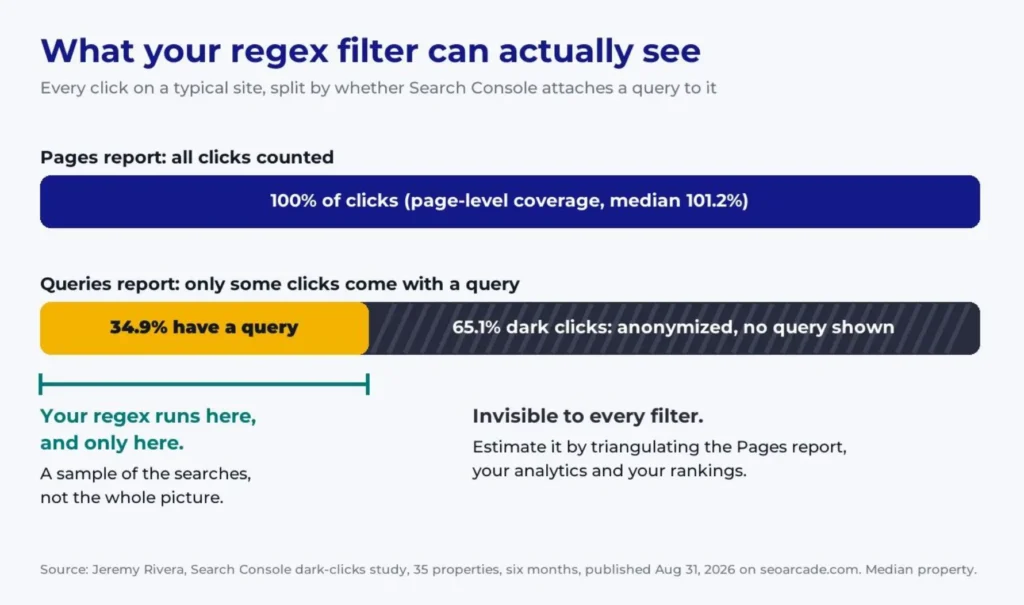
Your regex sees the gold slice. Source: Jeremy Rivera’s 35-property dark-clicks study, August 2026.
That doesn’t mean Google lost those visitors.
It means the available query report doesn’t reveal the searches associated with many of those clicks.
And here’s the important part:
No regex filter can recover queries Google doesn’t provide.
You can analyze the information available to you, but you can’t directly retrieve the hidden query data through Search Console.
There are ways to make informed estimates.
For example, you can compare:
- Which pages receive organic search traffic.
- What search queries are visible.
- Which relevant keywords those pages rank for.
- What your website analytics reveal about traffic and engagement.
- What customers tell you they’re searching for.
Together, those sources can help you develop a more complete understanding of how people discover your business.
But remember, those are estimates and interpretations, not recovered search queries.
What About Visitors Coming From AI Tools?
There’s another reason not to rely on Search Console as your only source of information.
People increasingly discover businesses through AI-powered tools and recommendations.
For example, someone might ask ChatGPT to recommend a business, then visit a website from that recommendation.
Depending on how the visit occurs and how your analytics are configured, that traffic may appear as an identifiable referral or as direct or unattributed traffic.
Google Search Console isn’t designed to provide a complete picture of referrals from external AI assistants.
That’s why combining Search Console with website analytics, customer feedback, and other sources of information is so important.
One tool rarely tells the entire story.
6. Turn Search Data Into Answers That Help Customers
Knowing how to use Google Search Console is only half the battle. The real value comes from taking what you learn and using it to improve your website. Search Console can help you understand which pages attract visitors and which visible searches lead people to your website.
Your job is to turn those insights into Content that answers real questions.
Here is my advice:
Stop talking like someone in your industry. Start talking like your customers.
Business owners and professionals often use terminology that makes perfect sense to them but means very little to the people they’re trying to reach.
Jeremy shared a great example involving a precast concrete wall company in Florida.
Instead of focusing only on the usual marketing language, he asked an installer what customers needed to know before a job.
The answers revealed practical questions that weren’t being addressed in the company’s marketing materials.
Was there enough room for the delivery truck?
Was the driveway wide enough?
Had the measurements been checked carefully?
Those are real concerns that can affect whether a project goes smoothly.
And they’re exactly the kinds of questions a potential customer might search for before hiring someone.
Imagine how much more useful a service page becomes when it answers those questions clearly.
The same principle applies whether you’re a contractor, consultant, financial advisor, retailer, or professional service provider.
Answer the questions customers actually ask, not just the questions you wish they were asking.
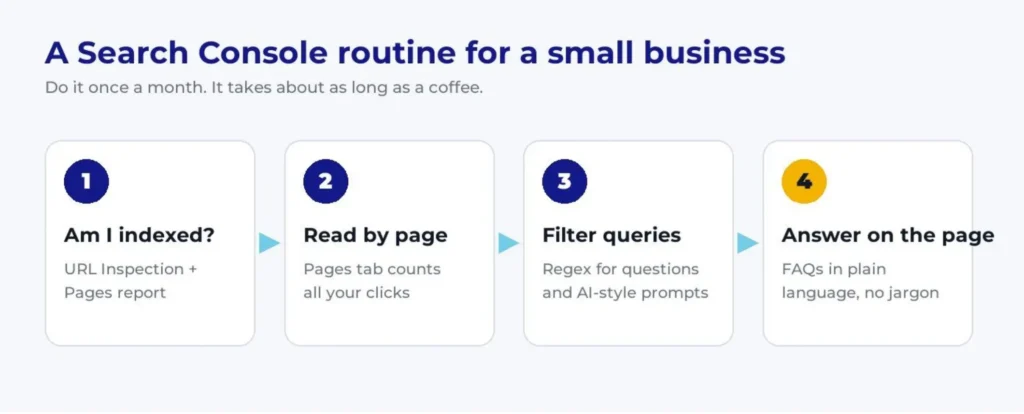
7. Your Monthly Google Search Console Routine
You don’t need to become an SEO specialist to understand how to use Google Search Console for your small business. Start with a simple routine you can repeat once a month.
Step 1: Check indexing.
Make sure your important pages are indexed and investigate any unexpected problems.
Step 2: Review page performance.
Look at which pages are receiving clicks and whether performance is improving or declining. Compare equivalent time periods when possible.
Step 3: Explore visible search queries.
Review the searches associated with your important pages. Remember that the query report is incomplete.
Step 4: Look for customer questions.
Use the question-based regex filter and compare the results with questions customers ask you directly.
Step 5: Improve one page.
Choose one important question and make sure the relevant page answers it clearly.
Step 6: Review the results.
Over time, watch for changes in clicks, impressions, and other meaningful business metrics.
Don’t expect every change to produce immediate results. Search performance takes time, and many factors can influence the numbers.
The goal isn’t to spend hours staring at reports.
It’s to make small, informed improvements that help more people find your business and understand how you can help them.
Final Thoughts: Use the Data, but Don’t Forget the People
Google Search Console is one of the most valuable free tools available to small-business owners.
It can help you understand how Google sees your website, identify technical problems, discover useful search queries, and recognize opportunities to improve your Content.
But it doesn’t show you everything.
And that’s okay.
The mistake isn’t using incomplete data. It’s assuming that incomplete data tells the complete story.
Combine what Search Console reveals with what your customers tell you, what your website analytics show, and what you know about your business.
Then use those insights to create Content that answers questions, solves problems, and helps people make decisions.
Because at the end of the day, getting found is only part of the job.
What happens after someone finds you matters just as much.
As I like to say:
Technology changes. Human nature doesn’t.
Frequently Asked Questions About Google Search Console
What is Google Search Console, and is it free?
Google Search Console is a free tool from Google that helps website owners understand how their websites perform in Google Search. It shows information such as clicks, impressions, search queries, and indexing issues. You don’t need to pay for a subscription to use it.
How do I use Google Search Console for the first time?
Start by adding your website to Google Search Console and verifying that you own it. Next, submit your XML sitemap and use the URL Inspection tool to check whether your important pages are indexed. Once Google begins collecting data, review the Performance report to understand how people find your website.
Why doesn't Google Search Console show all my search queries?
Google hides some search queries to protect user privacy. Other reporting limitations can also affect the data you see. That’s why the total clicks shown in your Queries report may be lower than your website’s overall search clicks. The missing query information doesn’t mean those visitors weren’t real.
Can Google Search Console help me find ideas for blog posts?
Absolutely. Look at the Queries report to discover what people search for before reaching your website. You can also use regular expression filters to identify question-based searches. Combine those findings with questions your customers ask in real conversations. Those questions can become blog posts, FAQs, or improvements to your existing service pages.
How often should a small-business owner check Google Search Console?
For most small businesses, reviewing Google Search Console once a month is a practical starting point. Check indexing problems, review your most visited pages, look for changes in search performance, and identify opportunities to improve your Content. If you’ve recently launched a website or made major changes, checking more frequently may be worthwhile.
About the Authors
David Levine
David Levine is the founder of I Am Your Virtual Professional and the bestselling author of Old School Service, New School Tools. He helps small businesses get found online, improve customer experiences, and keep customers coming back by combining practical technology with old-school customer service principles.
Learn more at I Am Your Virtual Professional.
Jeremy Rivera
Jeremy Rivera is an SEO professional and researcher who explores organic search performance, Google Search Console reporting, and the changing relationship between search engines and AI. His research helps marketers better understand what search data reveals—and what it leaves out.
Learn more about Jeremy’s research at SEO Arcade.
Research and Additional Resources
Google Search Console — Google’s free website search performance and indexing tool.
Google Search Central Documentation — Official guidance on indexing, search performance, and website visibility.
Jeremy Rivera’s Dark Clicks Study — Research into missing query-level click data in Google Search Console.
My Podcast Resources — Additional tools, insights, and resources for small-business owners.